
Setup guide · about five minutes
Up and running in five minutes.
Everything you need after checkout: which file to download, how to import it, how the calendar buttons work, and how to add covers and stickers. Keep this page — it is the same guide that came with your order.
Which file do I download?
Your download email has one folder per theme (Sand, Sage, Slate, Blush — all four are yours). Inside each theme:
- Google Calendar or Apple Calendar folder — pick the calendar you actually use. Google needs nothing; Apple needs a free one-tap shortcut (chapter 3).
- Open the year you want (2026, 2027, 2028, 2029) and download the file ending in Sun (Sunday start) or Mon (Monday start).
- The Undated planner has no calendar buttons or week-start variant — one file, start any day.
Import it into your app
GoodNotes (iPad, iPhone, Mac, Android, Windows)
- Save the PDF to Files (or Google Drive / Dropbox) on your device.
- Open GoodNotes → tap + (New) → Import → choose the planner PDF.
- Tap the three dots at the top right → Scrolling direction: Vertical (recommended).
- Turn on Read-only mode when you only want to navigate: taps then open links instantly. Switch back to edit mode to write.
Notability
- Import (arrow icon) → choose the PDF.
- Links work in both view and edit modes.
- Prefer "Single page" paper view for the fastest navigation.
Noteshelf, Xodo, CollaNote, Samsung Notes, Penly
- Import the PDF as a new notebook (Import / Open PDF).
- If taps do not open links, look for a "Read mode" or "Link mode" toggle.
- Samsung Notes: tap links with your finger, write with the S Pen.
Calendar buttons
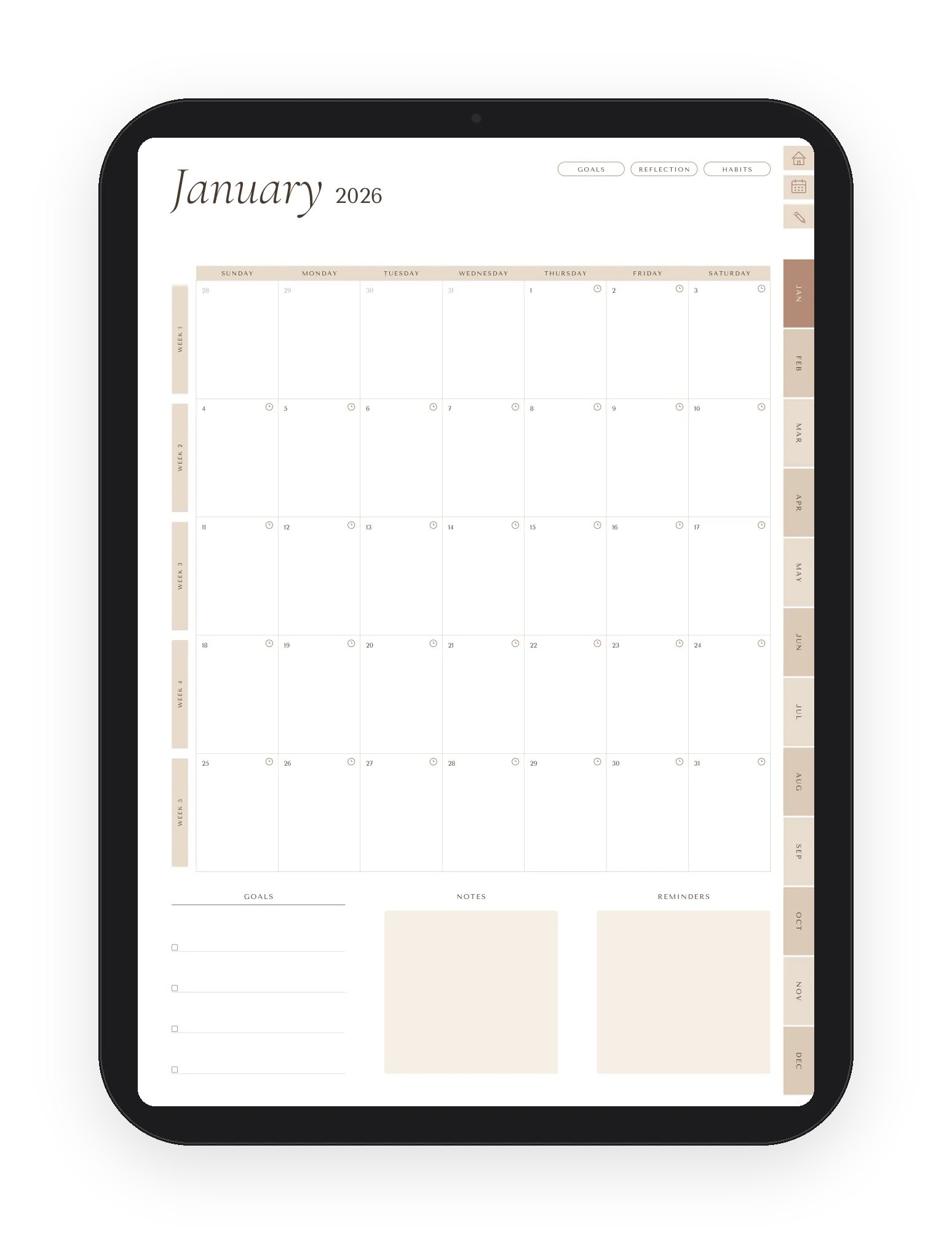
Every day cell on the monthly and weekly pages has a small clock icon. Tapping it creates an event for that day in your calendar app. It is one-way: the planner adds events, it never reads your calendar.
Google Calendar version
- Tap the clock on any day.
- Google Calendar opens with the date already set.
- Type the title, adjust the time, save. Nothing to install.
Apple Calendar version — one-time setup
- Install the free EndlessCalendar shortcut on your iPhone or iPad (the link is in your download email), then tap Add Shortcut.
- Tap the clock on any day in the planner.
- The shortcut asks for the event title, then an optional start time (leave it empty for an all-day event).
- Allow calendar access the first time. The event is created and a confirmation appears.
Troubleshooting
- Nothing happens: your app may block external links — look for an "Open links" setting, or switch to read-only mode.
- "Shortcut not found": install the shortcut again from the link and do not rename it.
- Wrong Google account: the link uses your default Google account. Switch the default account in the Google app.
Navigation & daily use
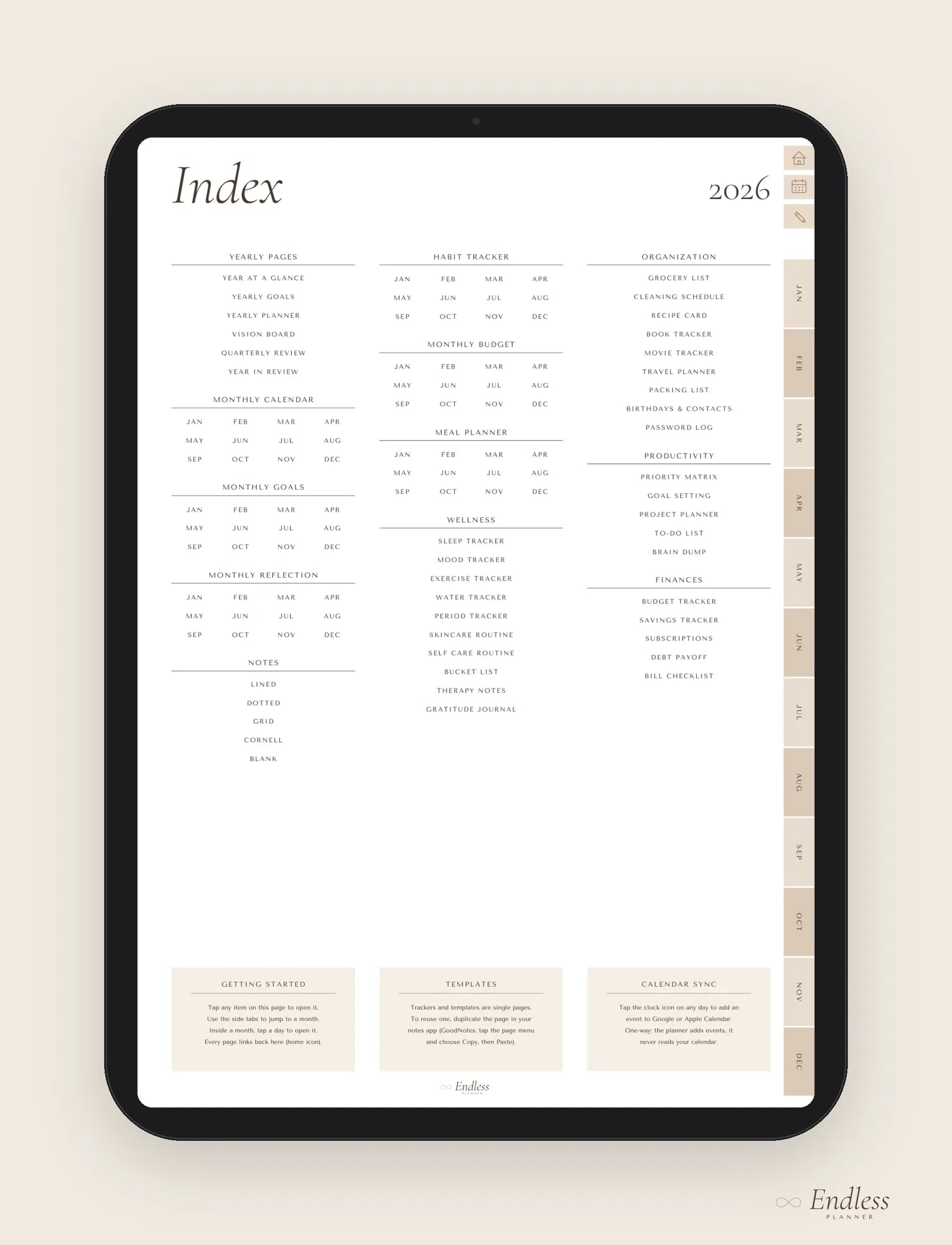
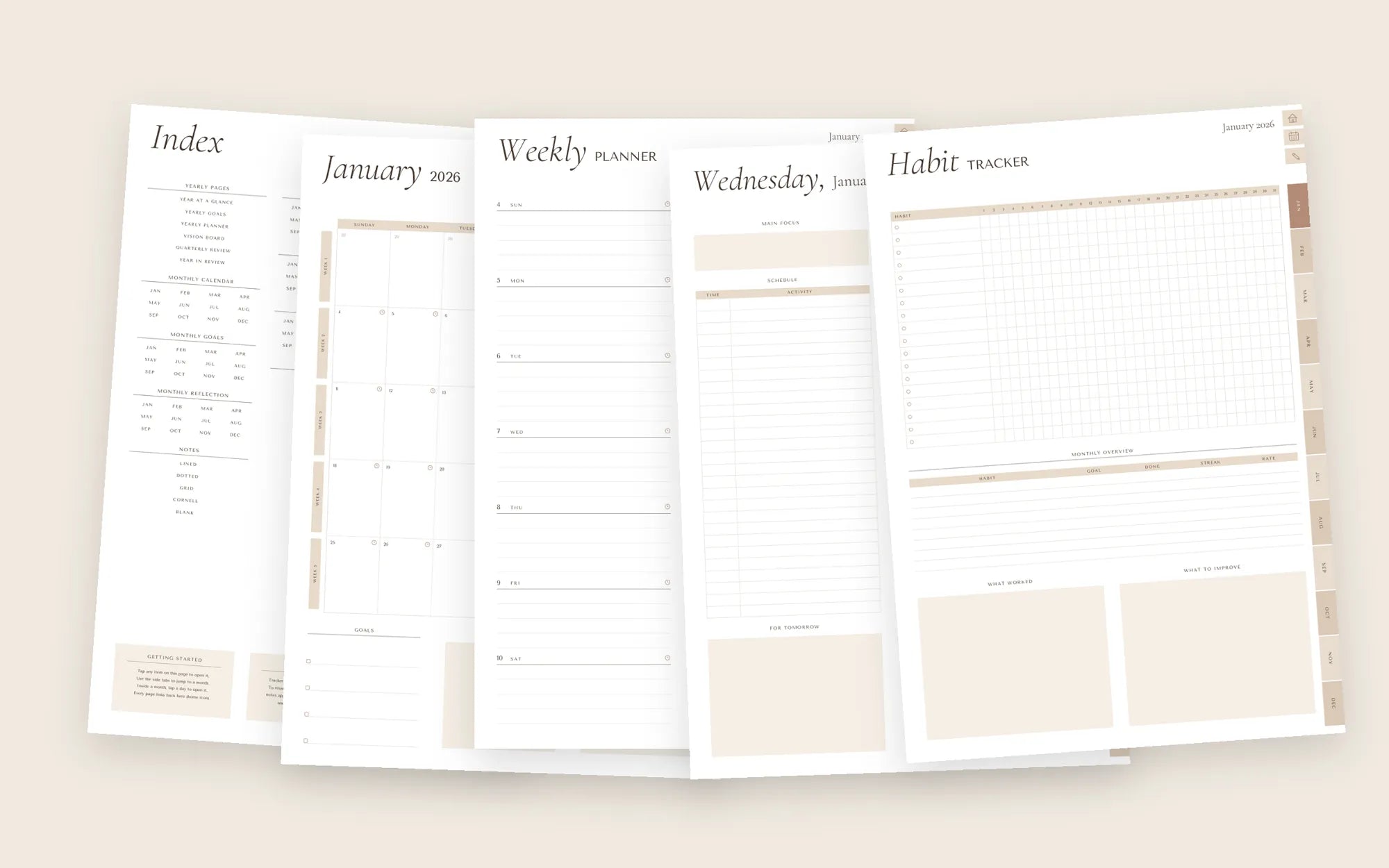
- Right side: 12 month tabs and three icon tabs (Index, Year at a glance, Notes) on every page.
- Index: tap any item — yearly pages, monthly pages, the 30 templates, the note styles.
- Monthly: tap a day for its daily page, a WEEK label for that week, the pills at the top for Goals, Reflection and Habits.
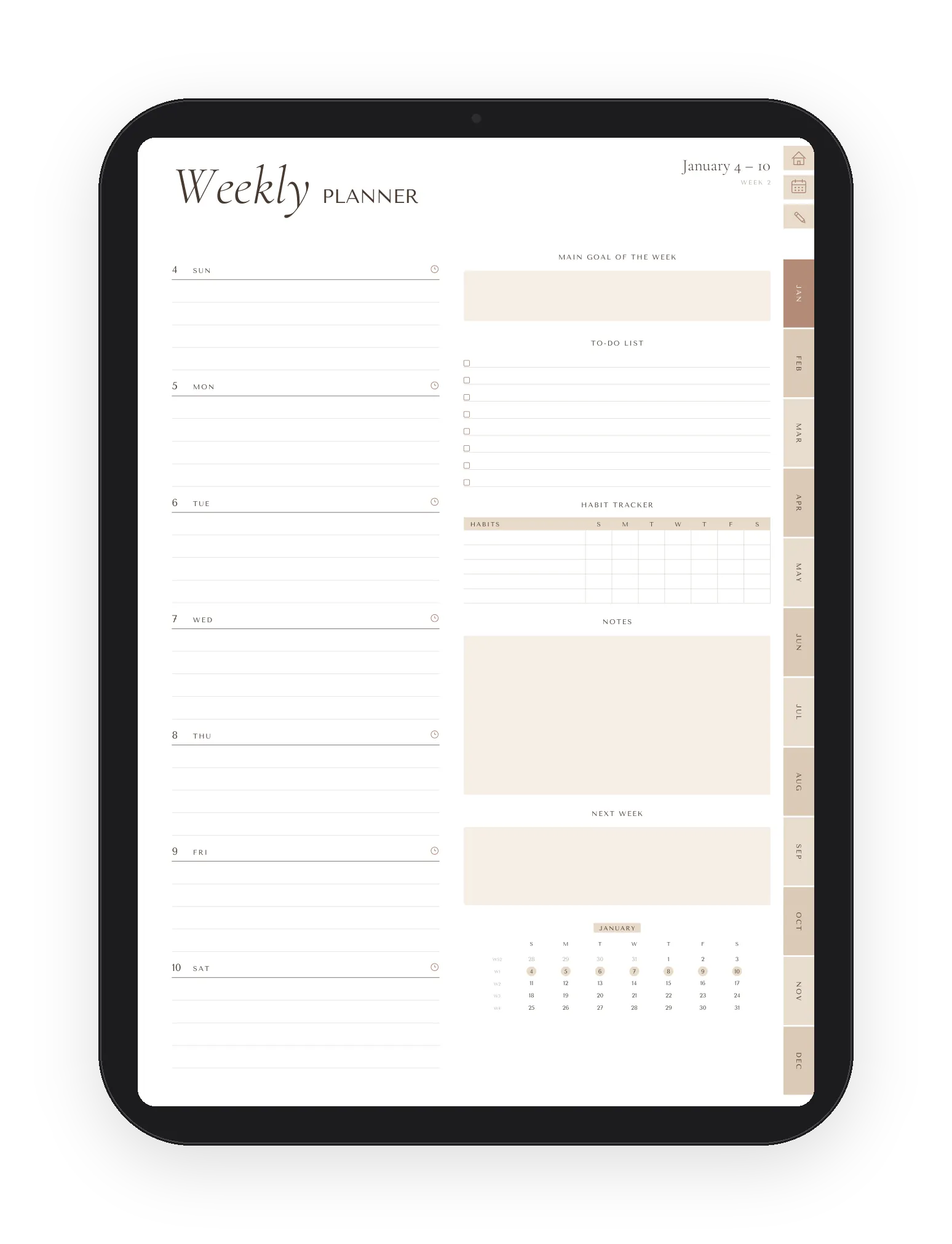
- Weekly: tap a day to open it; the mini calendar links to every day of the month.
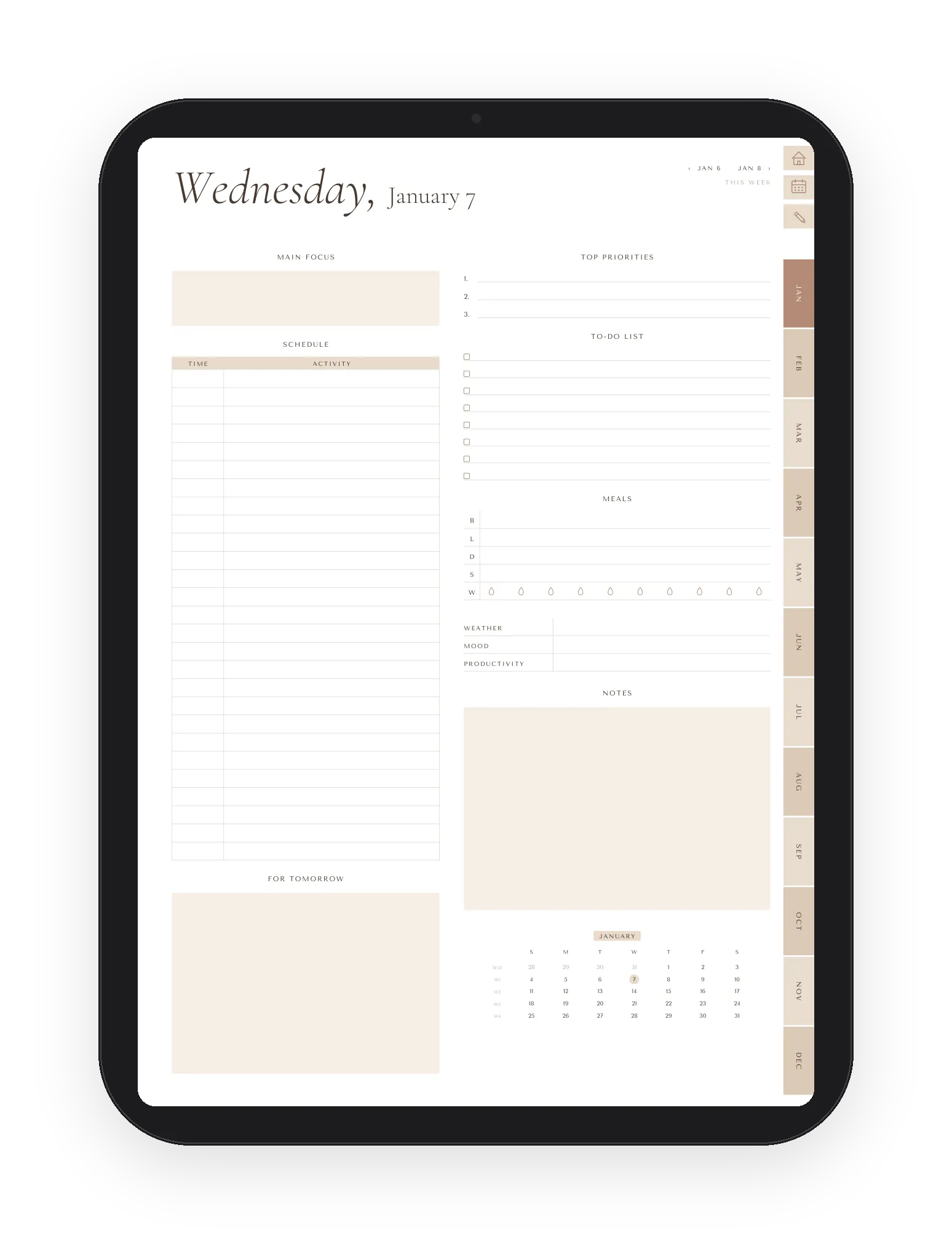
- Daily: ‹ previous / next › at the top, "This week" returns to the weekly page.
- Bookmarks: the file also has a full outline (year → month → week → day) in your app's bookmark panel.
Templates and notes
The 30 templates and the 50 note pages are already in the file (ten copies of each template). Need more? Duplicate a page: GoodNotes → thumbnail → Copy → Paste; Notability → page menu → Duplicate. Monthly trackers (habits, budget, meals) are already dated for all 12 months — nothing to duplicate.
Covers & stickers
Add a cover
- Open the covers folder and pick one (PNG, 1545 × 2000 px).
- GoodNotes: notebook → page thumbnails → + → Import → choose the cover → drag it to the first position.
- Notability / Noteshelf: import the image as a page and move it to the front.
Use the stickers
- Copy the stickers folder to your device (Files / Google Drive / Dropbox).
- GoodNotes: Elements tool → + → Import from Files → select the stickers. They are saved in your Elements library for reuse.
- Other apps: Insert → Image and choose a sticker. All stickers have a transparent background.
Still stuck?
We answer every email.
Write to info@endlessplanner.com with your app and device and we'll sort it out — usually within one business day.
Contact usDon't have Endless Planner yet? See what's inside →